WordPress site for Linux and other computernerds

Category: linux (Page 1 of 2)

Updated client-side filter plugin for Roundcube Webmail 1.7.x


As a longtime user of a self-hosted Roundcube installation, I was unhappy with the fact that one of my favorite plugins no longer worked with recent versions of Roundcube (1.7.x) and PHP 8.4.x. To make matters worse, the client-side filters plugin I used, seems to be abandonned by the original authors.
This is the old plugin: https://github.com/roundcubevnz/roundcube-plugin-filters

So, I took it upon me to update the plugin to make ik compatible again with the latest versions of RoundCube (1.7.x) and PHP 8.4.x. Tbh, I am not much of a PHP-coder, so I relied heavily on the use of Google Gemini to do the heavy lifting for me. It took me several sessions and many hours, providing feedback and pushing Gemini to produce the new code until it finally did what I wanted, without errors.
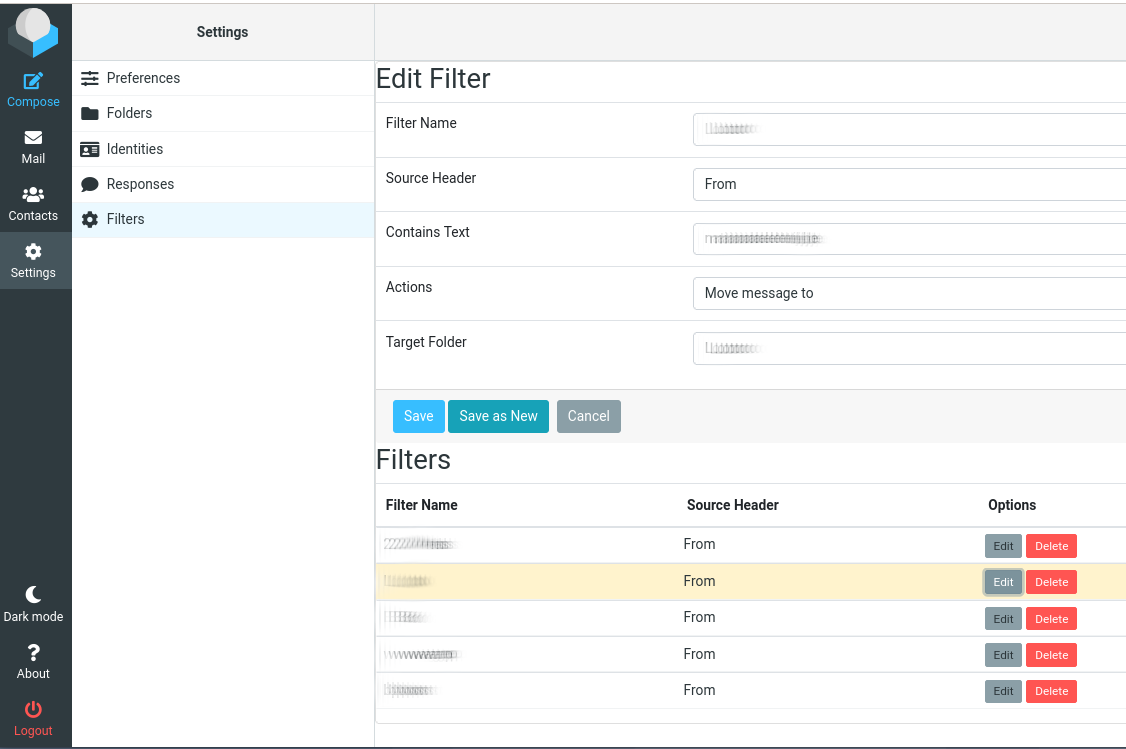
The plugin adds a tab to the Roundcube Settings, allowing you to create filters. The filters can also be edited again, saved or saved as (create copy), and deleted.

If you want to use it, download the zipfile, unzip it in your Roundcube plugins folder, and enable it in the config. You may also need to create the DB-table called filters. You can use the sql file in the zipfile. You most likely also need to change the DB name (USE dbname; ) in the sql file before you run this.
It works fine for me, but as always, YMMV.

Everybody likes screenshots, so this is what it looks like when editing an existing rule (click image for large view):

Shows editing of filter rule.

Filters plugin 2.5


DISCLAIMER: This code is provided ‘as is’ without warranty of any kind. Use at your own risk. The author assumes no responsibility for any damages or data loss.

Downloads:

Enjoy 🙂

MKVToolNix 71.1.0 for Slackware x64


Latest version of the MKVToolnix package for Slackware (Sbo build), build on a Slackware-current 15.0+ system. Requires Qt5.

 
For Slackware-current x64:

 
You might run into interface issues with this version: the GUI could show partially hidden interface elements, fonts, checkboxes, …
See the next link for more info (GitLab bug report): https://gitlab.com/mbunkus/mkvtoolnix/-/issues/3358

Solution is to create an ENV variable:

QT_AUTO_SCREEN_SCALE_FACTOR=0

Put it somewhere in /etc/bashrc or the user’s .bashrc. That should fix the interface issues.
 
Enjoy 🙂
 

Fix your wifi card being blocked after booting (Linux 3.10.x)


The problem

 
After upgrading an old laptop (HP nc8430) to a kernel from the 3.10 series, everything seemed to work fine, except for my wifi card (Atheros AR5418 Wireless Network Adapter [AR5008E 802.11(a)bgn]). Contrary to the previous kernels, after booting, the wifi led was dead, and I obviously had no connection with my wifi station. At first sight, I tried the wifi radio button, but that didn’t help, the wifi led stayed dead. Wicd could not find an active adapter.


Analyse this

 
When I ran lsmod , it showed me that all the required modules (the ath9k driver for the wifi adapter, wifi networking, 802.11, …) were loaded. When I ran iwconfig, it even showed me a wlan0 device, albeit not connected of course. WTF is going on ?

 Ok, let’s see what rfkill says:

rfkill list

I got a surprise: everything was blocked. I also have no idea why, but rfkill now showed me two wifi options: hp_wmi and phy0. I am pretty sure the hp_wmi thingie was never there before. Both of them were blocked (hard and soft), so I unblocked them:

rfkill unblock all

Now when I ran wicd-client, it connected to my wifi station. The wifi led come on as well. Good, but now, how do we fix this permanently ?


Solution

 
It appears that the hp_wmi module (support for some HP keys) does not play well with the rfkill module (RFKill is a linux kernel subsystem that provides an interface through which radio transmitters in a computer can be queried, activated, and deactivated).
So, a simple fix is to prevent the hp_wmi module from loading. On a Slackware 14.0 system, this can be achieved by creating a hp_wmi.conf file, in /etc/modprobe.d/, containing the following:

##############################################################################
# Do not edit this file; instead, copy it to /etc/modprobe.d/ and edit that
##############################################################################

# Blacklist because interferes with wifi (wifi rf blocked at boot) 
blacklist hp_wmi

 
This solves my problem: the wifi card now works again straight after booting, just like it did before. If you’re facing the same problem, let me know if this fix also works for you.
  

Tell Samba to shut up about CUPS


The problem

 
Lately, I stumbled upon a minor but annoying issue with Samba on one of my file servers. There are no printers installed on this server, and probably never will be. However, smbd complains to no end in the client logfiles about not being able to connect to a CUPS server:
 

[david@Samba ~]$ head /var/log/samba.dfpc5
...
[2013/07/23 07:49:24.869727,  0] printing/print_cups.c:109(cups_connect)
  Unable to connect to CUPS server localhost:631 - Connection refused
[2013/07/23 07:49:24.869790,  0] printing/print_cups.c:468(cups_async_callback)
  failed to retrieve printer list: NT_STATUS_UNSUCCESSFUL
...

 
All of the client logfiles were spammed continously by Samba with these lines. While this did not seem to harm the performance of the server, I wanted to ged rid of them. After all, I never configured this Samba server to use CUPS, so why the hell is it trying to find one ?
 

The cause

 
This file server runs Slackware Linux, and the Samba package provided by Slackware, is compiled with – – enable-cups (like it is on most distros). Consequently, unless you tell it otherwise, Samba uses CUPS as the default printing system and tries to connect to a local CUPS server. And if fails to do so, it starts spamming your log files . . .


The solution


There are several solutions to this problem:

  • reconfigure your Samba installation not to use CUPS
  • recompile the Samba package without CUPS support
  • run CUPS anyway on that server so Samba can connect to it

 
I prefer the 1st solution. Just edit your smb.conf file, and look for the line that says “printing = cups”. Pay attention to the ; character at the front, which actually commnents out this line. You must remove the ; character.


;   printing = cups

 printing = bsd

 
Save the file and restart the Samba service. Those pesky CUPS lines in your logfiles should be history.
 

Remote Desktop tricks for Linux users


If you like to make RDP connections to Windows machines from your Linux box, it is often convenient if you can set a few things right from the start. As such, I wrote a little shell script around rdesktop, in order to make life somewhat easier for me.
 
This script does the following:

  • invoke rdesktop
  • set the keyboard layout to Belgian AZERTY
  • set the screen resolution to something that fits the screen of my laptop
  • map a local directory so it is available on the remote Windows box


And here is the script:

#!/bin/bash
#-----------------------------------------
# simple wrapper for rdesktop
# set keyb layout on server to azerty BE
# set window size to 1370x840
#-----------------------------------------

 if [ $# != "0" ] ;
 then

   rdesktop -k nl-be  -r 'disk:homedrv=/home/david/' -g 1370x840  $1

 else
   echo "$0: No arguments were supplied. Please supply a valid target 
             hostname or IP address."
   exit 1
 fi

 exit 0


The script must be invoked with one arument, the hostname or IP adress of the machine you want to connect to. I guess the script is simple enough to understand what it does. Adapt it to your particular needs, and I hope you like it.

« Older posts